
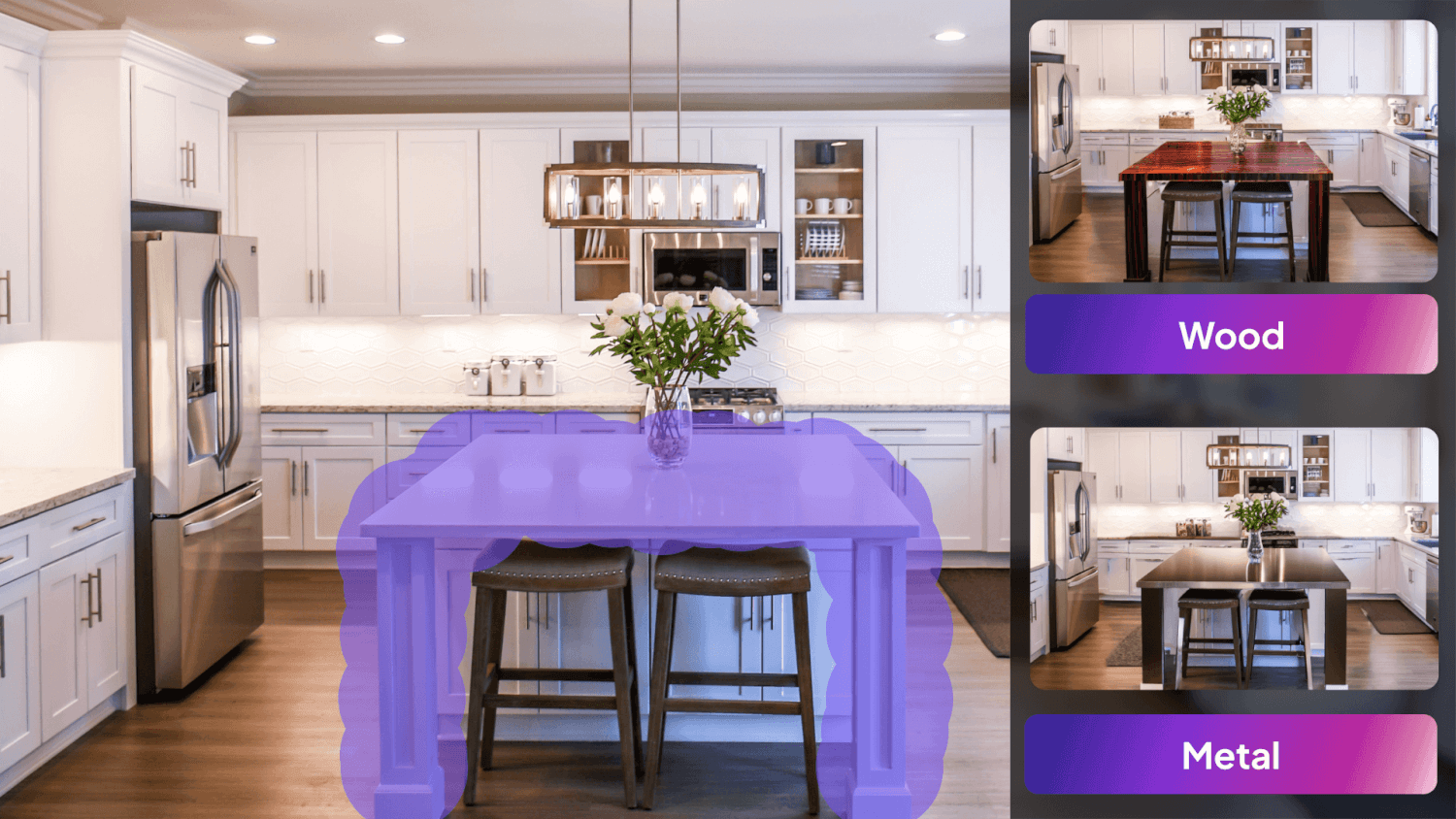
At HomeDesigns AI, we are dedicated to providing tools that empower users to explore and personalize their design projects. One of our most versatile tools, Colors & Textures, allows users to customize the colors and textures of various elements within a design, offering a personalized aesthetic for interiors, exteriors, and gardens. In this article, we’ll introduce the Colors & Textures tool, explain its functionality, discuss who can benefit from it, and provide a step-by-step guide on how to use it effectively. We’ll also share some tips and tricks to help you maximize the potential of this powerful feature.
Introducing the Colors & Textures Tool
The Colors & Textures tool was created to give users the flexibility to experiment with different looks and achieve a truly personalized design. Whether you’re looking to refresh the colors of your home’s exterior, try out new textures for your garden, or experiment with interior decor, this tool offers a wide range of customization options. You can choose from a vast library of preset colors and materials or upload your own custom colors and materials, allowing for endless possibilities.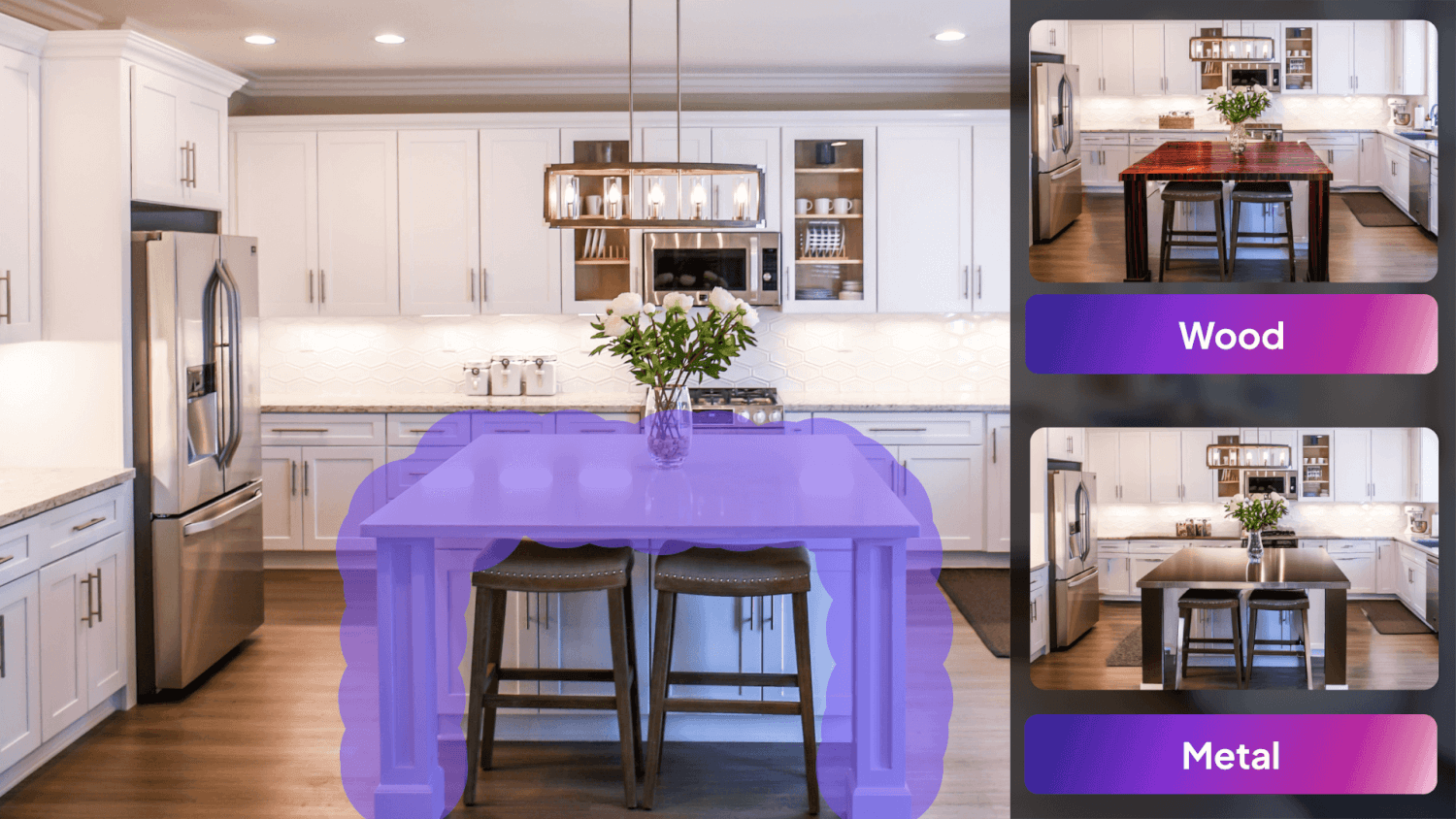
What Colors & Textures Can Do
The Colors & Textures tool is designed to help users reimagine their spaces by applying new colors or textures to various elements. Whether you want to change the color of your walls, apply a new texture to your flooring, or experiment with different materials for your furniture, this tool provides the capabilities needed to bring your vision to life.
Key Capabilities
- Color Customization: Change the colors of walls, furniture, decor, and more to match your desired aesthetic.
- Texture Customization: Apply different textures to surfaces, including walls, floors, and furniture, for a unique look.
- Hybrid Customization: Combine color and texture customization for a more specific and detailed transformation.
- Versatile Applications: Suitable for house interiors, exteriors, and garden spaces, allowing for a comprehensive design experience.
- Presets and Custom Options: Choose from an extensive library of colors and materials or upload your own custom options for personalized results.

Who is the Colors & Textures Tool For?
The Colors & Textures tool is perfect for anyone looking to explore different design possibilities and customize their spaces. It’s ideal for:
- Homeowners: Looking to refresh the look of their interiors or exteriors.
- Interior Designers: Experimenting with different color schemes and materials for client projects.
- Realtors: Enhancing property photos with updated colors and materials.
- Architects: Visualizing material finishes and color schemes for design plans.
- DIY Enthusiasts: Experimenting with colors and different textures before committing to a project.
- Event Planners: Customizing venue decor with specific color schemes.
- Furniture Makers: Visualizing different finishes and materials on their furniture designs.
- E-commerce Stores: Providing customers with customizable product options.
- Furniture Retailers: Showcasing different variations of their products.
- Decor Stores: Helping customers visualize how different decor items will look in various colors or textures.
How to Use the Colors & Textures Feature
Using the Colors & Textures tool is straightforward and user-friendly. Here’s a step-by-step guide to help you get started:
- Start by uploading a clear, high-quality image of the space you want to customize.
- Our AI will automatically identify every object in the image.
- Use the Manual Selection or Automatic Selection tools to select the area you want to change.
- Choose from Interior, Exterior, or Garden spaces.
- Choose between Color and Material, depending on what you want to change.
- Presets: Select from a wide range of preset colors and materials.
- Custom Options: Type custom colors and textures if desired.
- Hybrid Customization: Select both a color and a texture for a more focused and detailed result.
- Click on Generate New Designs to see the changes applied to your space.
- Review the customized space and make any necessary adjustments. Use the HD button to enhance the clarity of the design if needed.
Tips and Tricks
To get the most out of the Colors & Textures tool, consider these helpful tips:
- High-Quality Images: Use well-lit, high-quality images for the best results.
- Manual and Automatic Selection: Use the automated selection to quickly select objects, and fine-tune with the manual brush for more precision.
- Go Beyond Presets: Explore custom colors or textures by clicking on Custom Colors or Custom Textures to achieve a unique look.
- Combine Colors with Textures: Select both a color and a texture (material) for an extra-focused result that stands out.
- Improve Resolution: Use the HD button to enhance the clarity of the customized space for a professional finish.
Wrapping Up
The Colors & Textures tool is a powerful feature that allows you to personalize your spaces with ease and creativity. Whether you’re a homeowner, interior designer, architect, or DIY enthusiast, this tool provides everything you need to experiment with different colors and textures and achieve the perfect look for your space. With HomeDesigns AI, you can transform your environment into a visually stunning masterpiece, tailored to your exact preferences. To explore more about our innovative tools, check out our latest article here.